Route Tool Guide
How to use the EDDM route tool, every feature explained
The route tool draws every USPS carrier route around a ZIP code, lets you pick the ones you want, and shows who lives on them before you pay. It is free and needs no account, and it covers the same planning step as the USPS EDDM tool, with extras. This page walks through each feature with screenshots from a real search: ZIP code 77494 in Katy, Texas.
Short answers
The two questions people ask first
What is the USPS EDDM tool?
It is the Every Door Direct Mail Online Tool that USPS runs for choosing carrier routes and ordering EDDM Retail postage. You search a ZIP code or address, pick routes and see address counts. Our route tool covers the same planning step, then prices printing and the mailing service too. The comparison below lists what each one does.
What is EDDM Retail?
EDDM Retail is the version of Every Door Direct Mail you take to the Post Office yourself. It needs no permit and no mailing list, and USPS accepts up to 5,000 pieces per ZIP code per day. With Print Only we ship the printed pieces to you for that drop-off. The EDDM guide covers the size and bundling rules.
Quick start
Pick your routes in four steps
Enter a ZIP code, select routes, check who you will reach, then choose a mailer. Nothing is charged until checkout.
- 1
Enter a ZIP code or address
Type a 5-digit ZIP code or the address of your shop. The map draws every USPS carrier route there, with address counts.
- 2
Select the routes you want
Click routes on the map, tick them in the table, draw an area around them, or filter by income, homeowners and age and select every match.
- 3
Check who you will reach
The selection summary shows routes and homes as you pick. Open Who lives here or the heatmap to see income, age and home ownership.
- 4
Choose your mailer and review
Pick Full Service or Print Only, a format, a size and a mail date. Review the routes, then continue to checkout.
At a glance
Every feature and when to use it
| Feature | What it does | Use it when |
|---|---|---|
| ZIP or address search | Draws every carrier route in a ZIP code, or within 1 to 5 miles of an address. | Always the first step. |
| Point and click | Click a route to add or remove it. A card shows households, businesses and who lives there. | You know the neighborhoods you want. |
| Table view | Lists every route with counts, distance and estimated postage. Tick rows to select. | You want to compare routes side by side. |
| Draw an area | Press and drag a shape around the area you want to mail. | Your target is a part of town, not a ZIP code. |
| Filters | Narrows routes by minimum income, share of homeowners and median age, then selects every match. | Your best customers share a profile. |
| Demographic heatmap | Colors routes by income, age, household size, home ownership, apartments or home value. | You want to see where your audience lives. |
| Radius | Adds every route inside a ring around a point you place. | Customers come to you, so distance matters. |
| Who lives here | Summarizes the households on every route you selected. | You want one profile for the whole campaign. |
| Satellite and Hybrid | Switches the map to aerial imagery, with or without street labels. | You need to see rooftops, farmland or commercial areas. |
| Help me choose routes | Asks your business type and suggests who to reach, then selects matching routes. | You are new to EDDM or short on time. |
| Review and share | Shows counts and demographics for every selected route. Print, email, save or copy a link. | Someone else has to sign off. |
01 · Find your routes
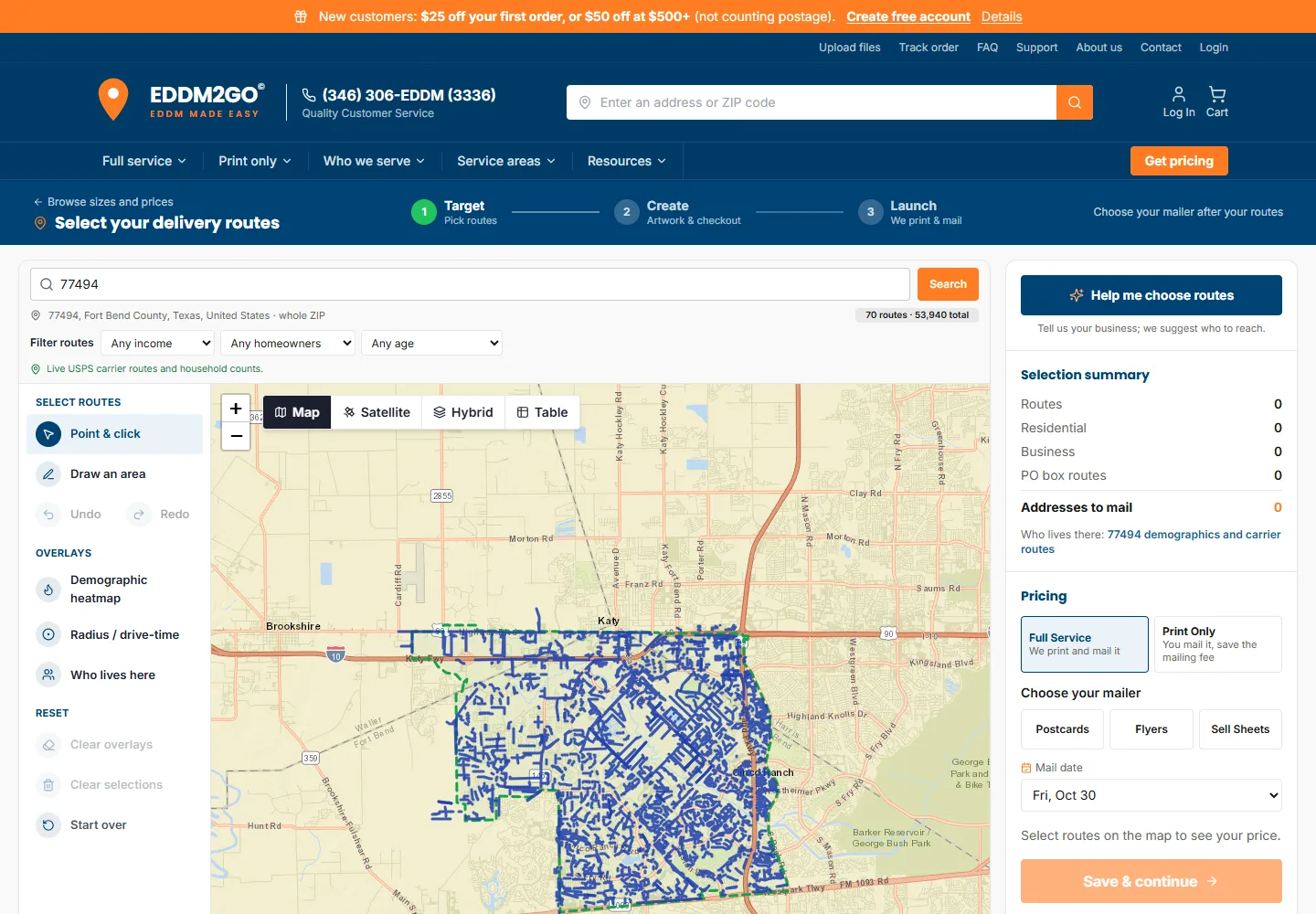
Search by ZIP code or address
A ZIP search covers the whole ZIP code. An address search covers the routes within a distance of that address, from 1 to 5 miles, which is the most USPS EDDM allows.
Under the search box the tool shows the place it found and a count, for example 70 routes · 53,940 total for 77494. That total is every address on every route in the search, before you select anything. A line below confirms the figures are live USPS carrier route and household counts.
Each route has a code like 77494-C033. The letter after the ZIP code is the route type, and the guide under the tool explains each one.
02 · Select routes
Four ways to select routes
Use whichever fits how you think about your market. You can mix them: draw an area, then click a few routes to add or remove.
Point and click
With Point & click active, click a route to select it and click again to remove it. Click a route and a card opens with its households, businesses, total addresses, estimated postage and the profile of who lives there. Selected routes turn orange.
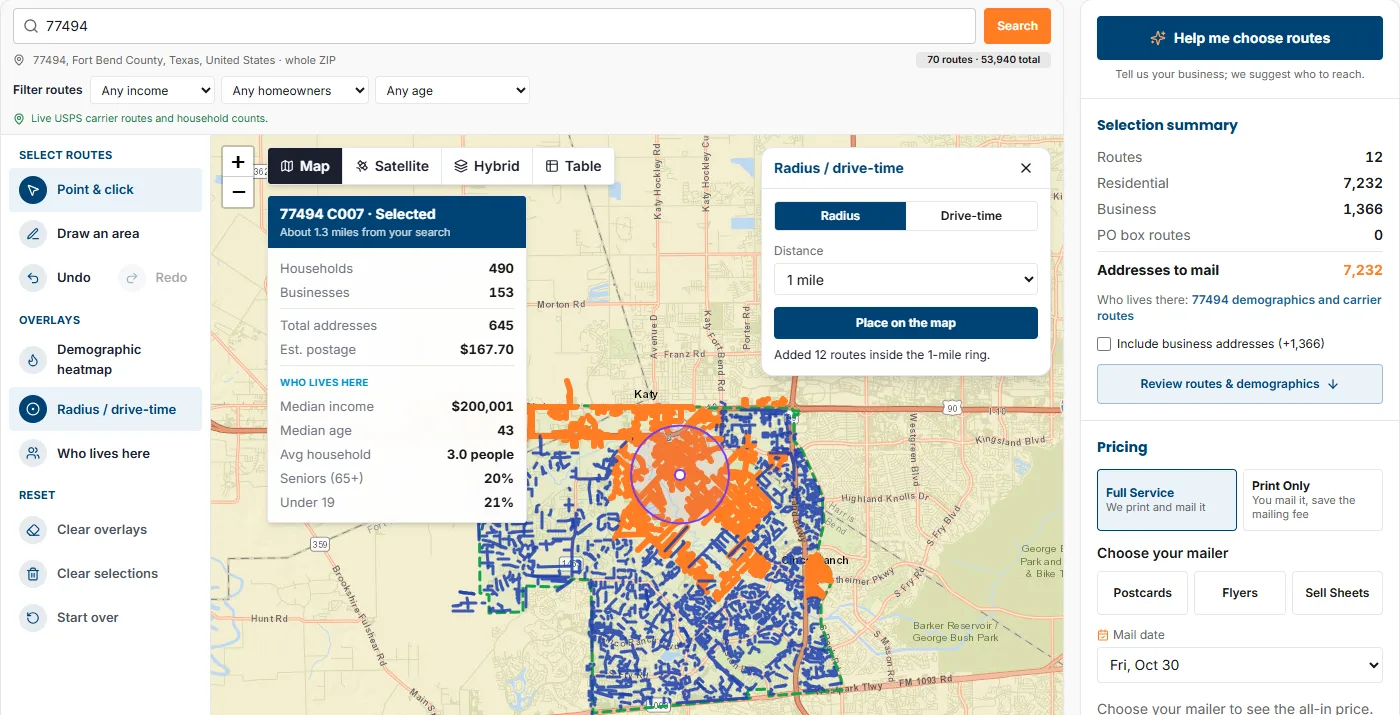
Table view
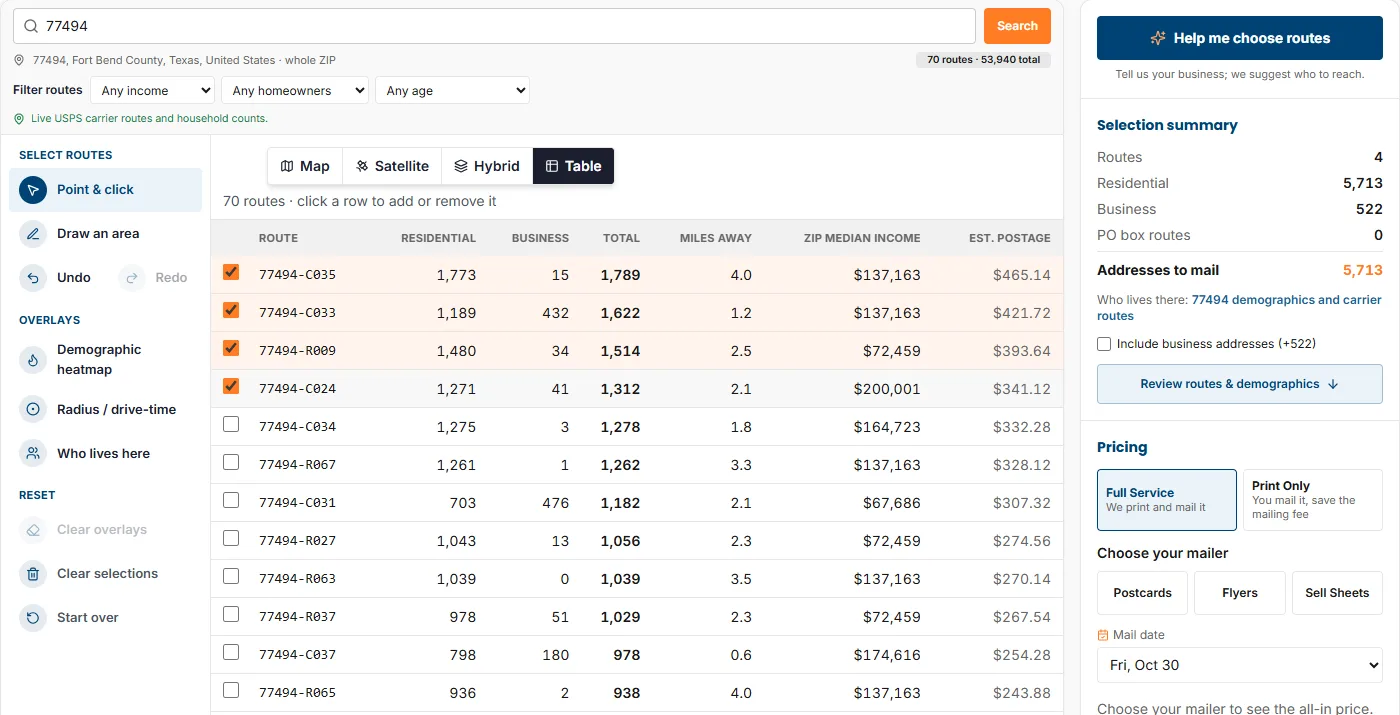
Choose Table above the map to see every route as a row with its residential count, business count, total, miles from your search, median income and estimated postage. Tick a row, or click it, to select. It is the quickest way to compare routes or to pick the largest ones first.
Draw an area
Choose Draw an area, then press and drag around the part of town you want. Release to select the routes in the shape. Cancel from the hint at the bottom of the map if you change your mind.
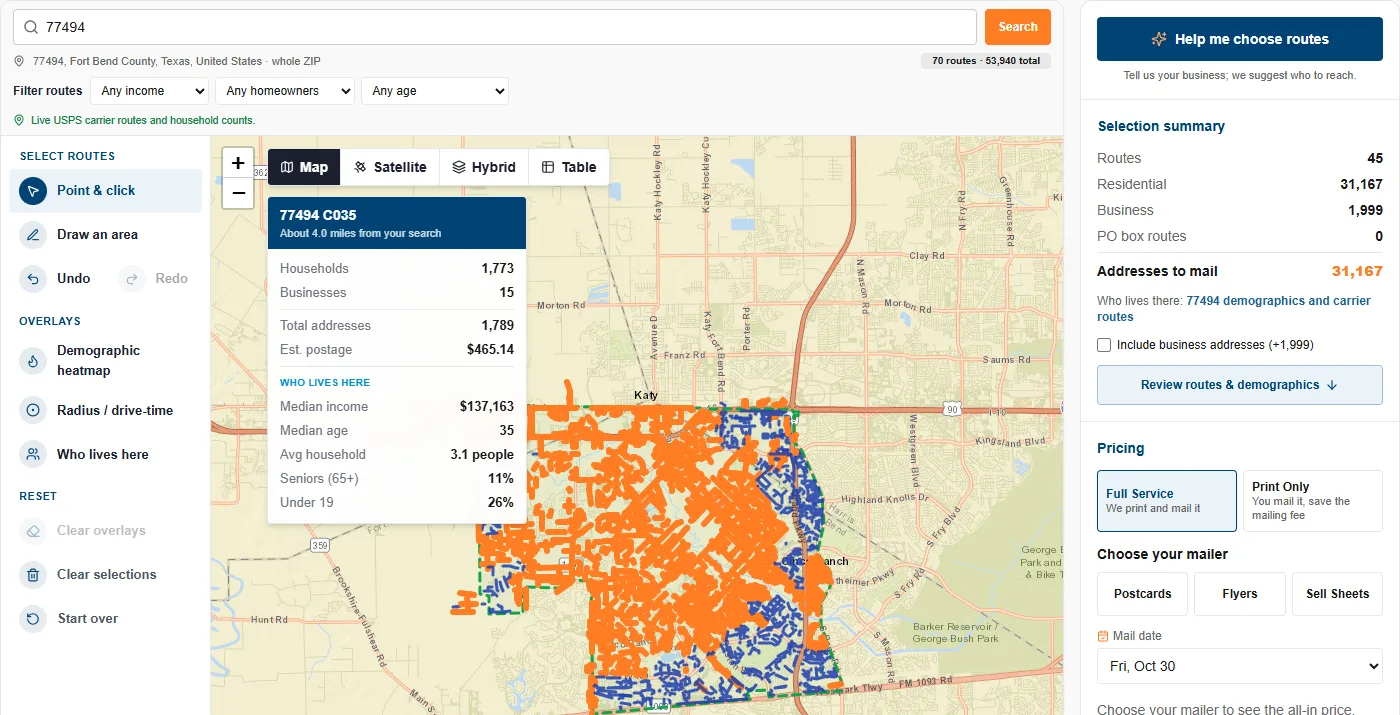
Undo, redo and start over
Undo and Redo step through your selections. Clear selections empties the selection but keeps the map, Clear overlays removes the heatmap or radius, and Start over resets everything.
Read the selection summary
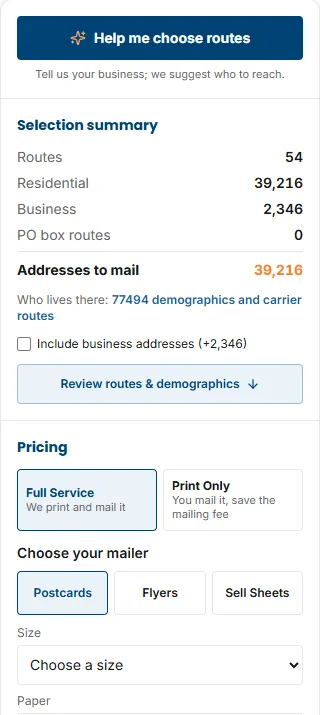
The panel on the right counts Routes, Residential, Business, PO box routes and Addresses to mail. Addresses to mail is your piece count. It is homes only until you tick Include business addresses, which adds the business count.
03 · Filter routes
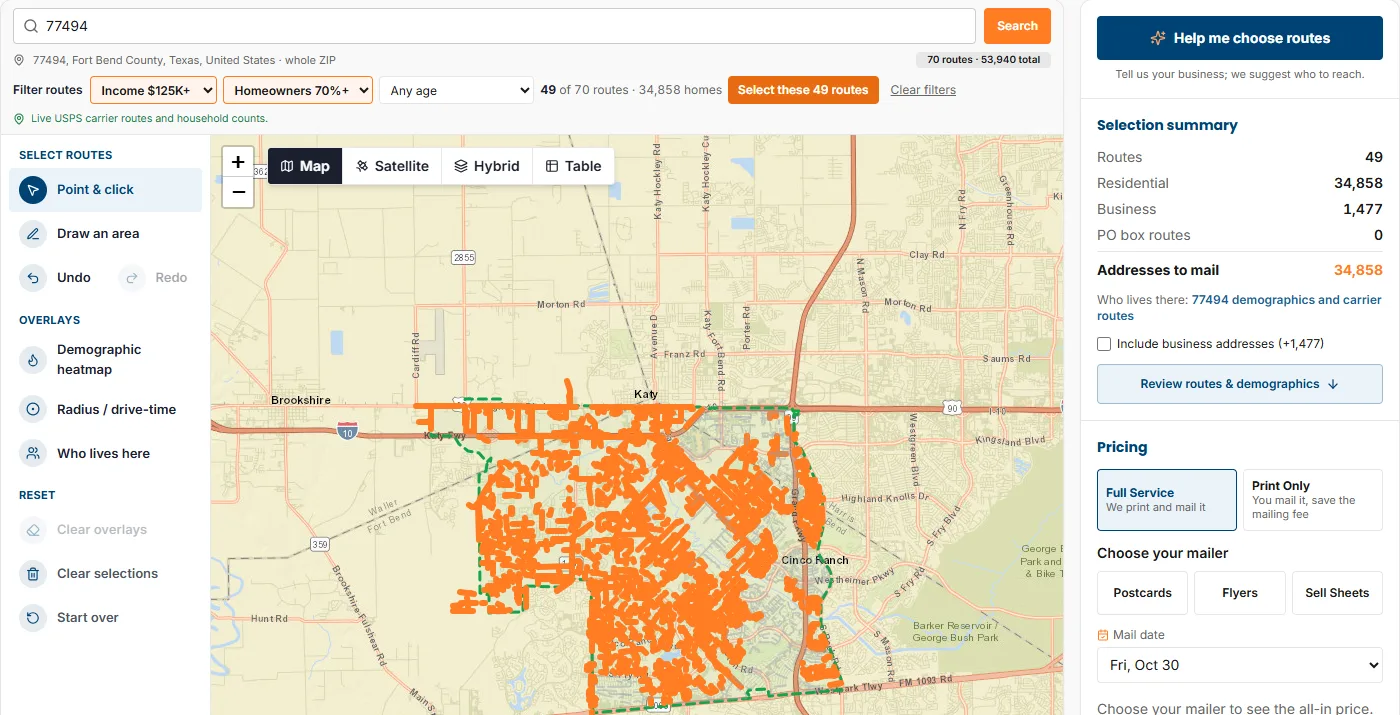
Filter by income, homeowners and age
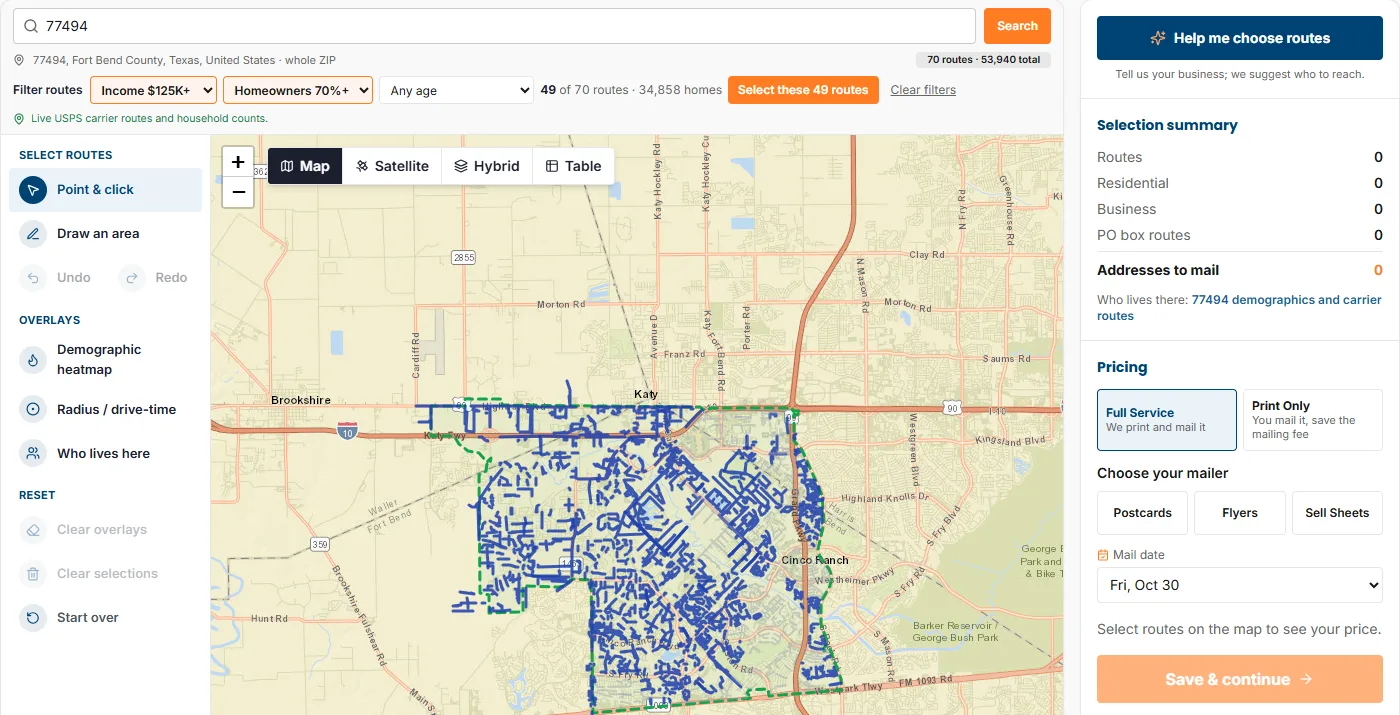
Three drop-downs above the map narrow the routes to your best customers. Combine them, then select every match in one click.
- Income: $50K+, $75K+, $100K+, $125K+, $150K+ or $200K+ median household income.
- Homeowners: 50%+, 70%+, 80%+ or 90%+ of households own their home.
- Median age: under 35, 35 to 44, 45 to 54 or 55 and over.
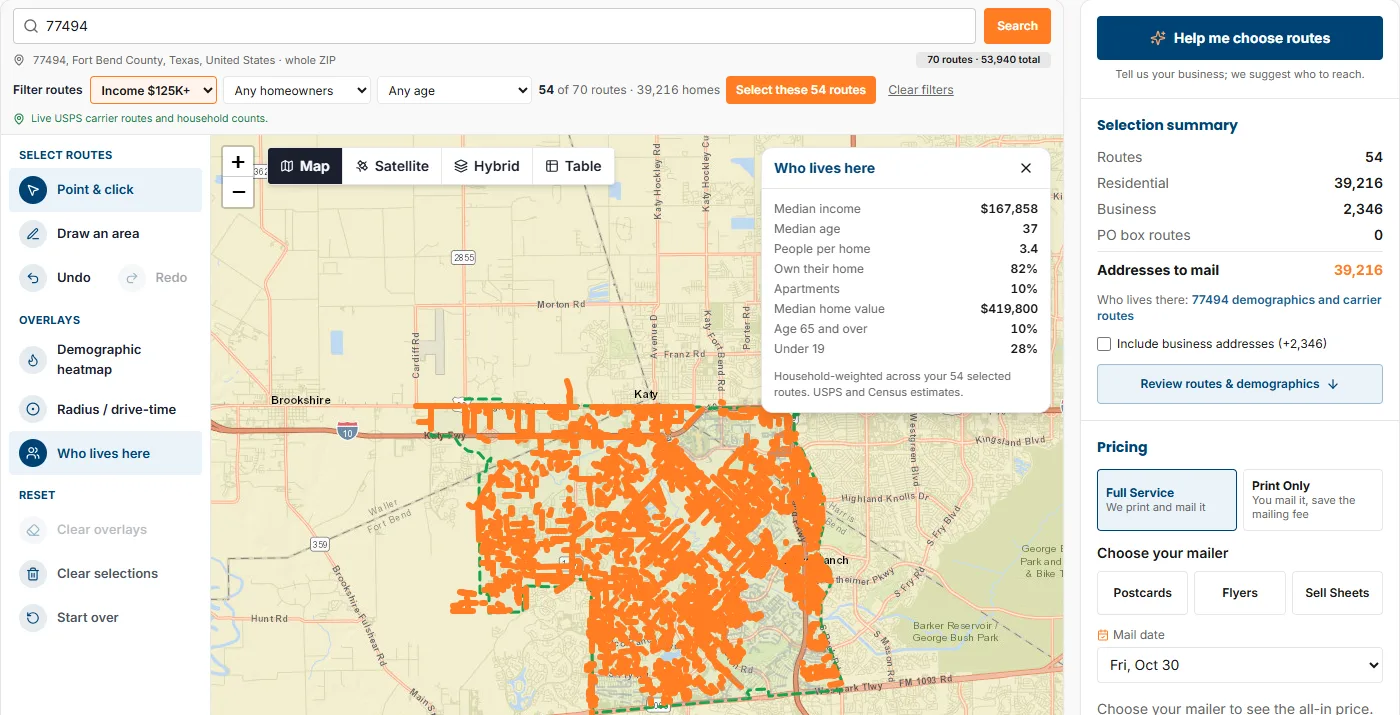
The tool shows how many routes and homes match, for example 54 of 70 routes · 39,216 homes for income of $125K+ in 77494, with a Select these 54 routes button. Routes that do not match fade on the map. Clear filters resets them.
04 · Map overlays
Three overlays that show who lives where
Open an overlay from the tools column on the left. Close it with the X, or choose Clear overlays.
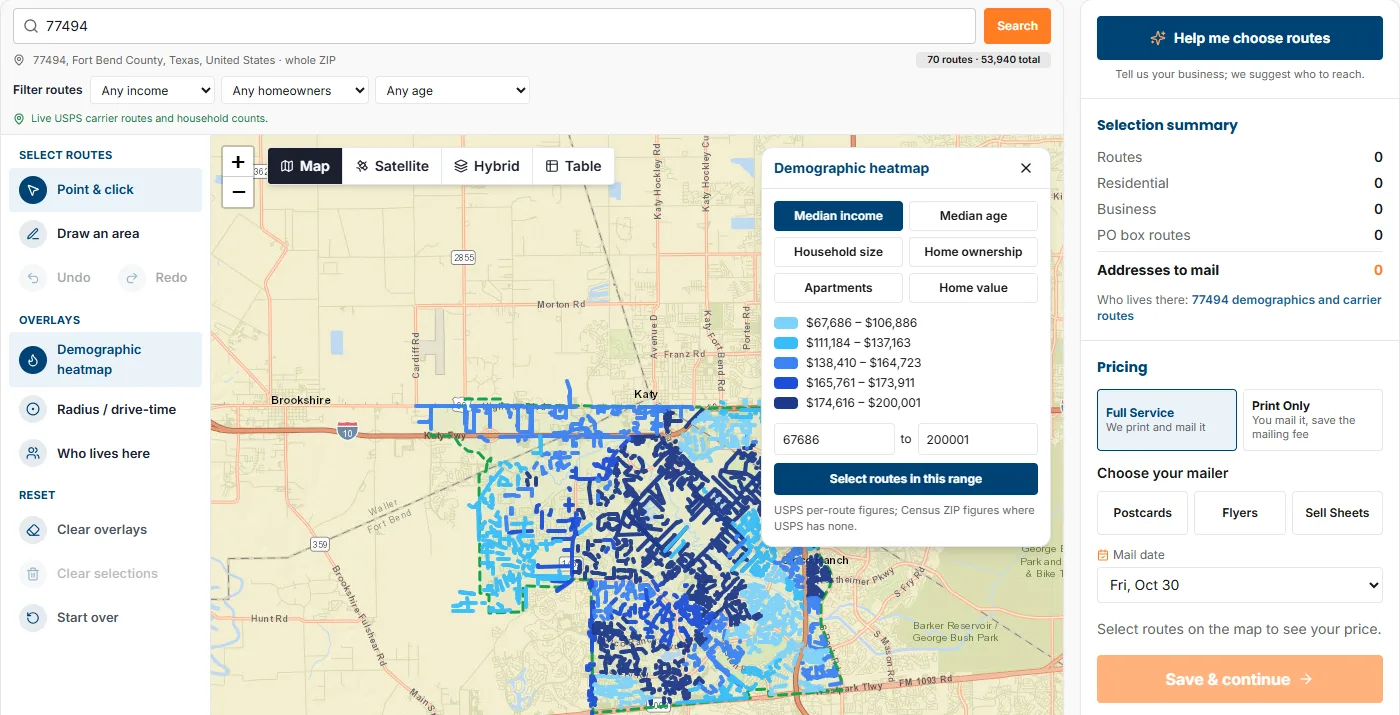
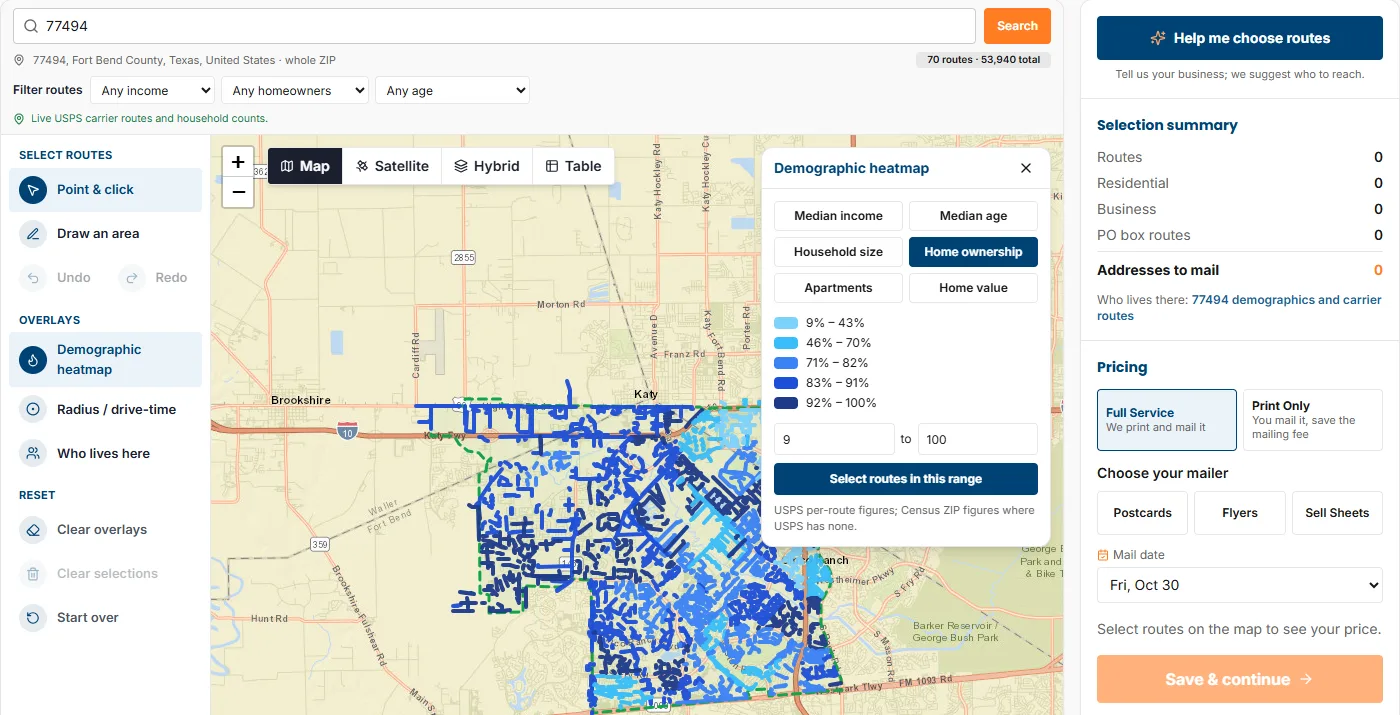
Demographic heatmap
Pick a measure and every route is colored from light to dark: Median income, Median age, Household size, Home ownership, Apartments or Home value. A legend lists the five ranges. Type your own low and high values and choose Select routes in this range to select every route inside it.
Radius
Choose Radius to mail around a point. Set the distance, choose Place on the map, then click where your shop is. The tool adds every route inside the ring and tells you how many it added. Radius offers 0.5, 1, 2, 3 or 5 miles. The screenshot under Point and click shows a 1-mile ring that added 12 routes.
Who lives here
Once you have routes selected, Who lives here summarizes the households on all of them: median income, median age, people per home, share who own their home, share in apartments, median home value, share aged 65 and over and share under 19. The figures are weighted by households across your selected routes.
05 · Map views
Map, Satellite, Hybrid and Table
The buttons at the top of the map switch the view without losing your selection.
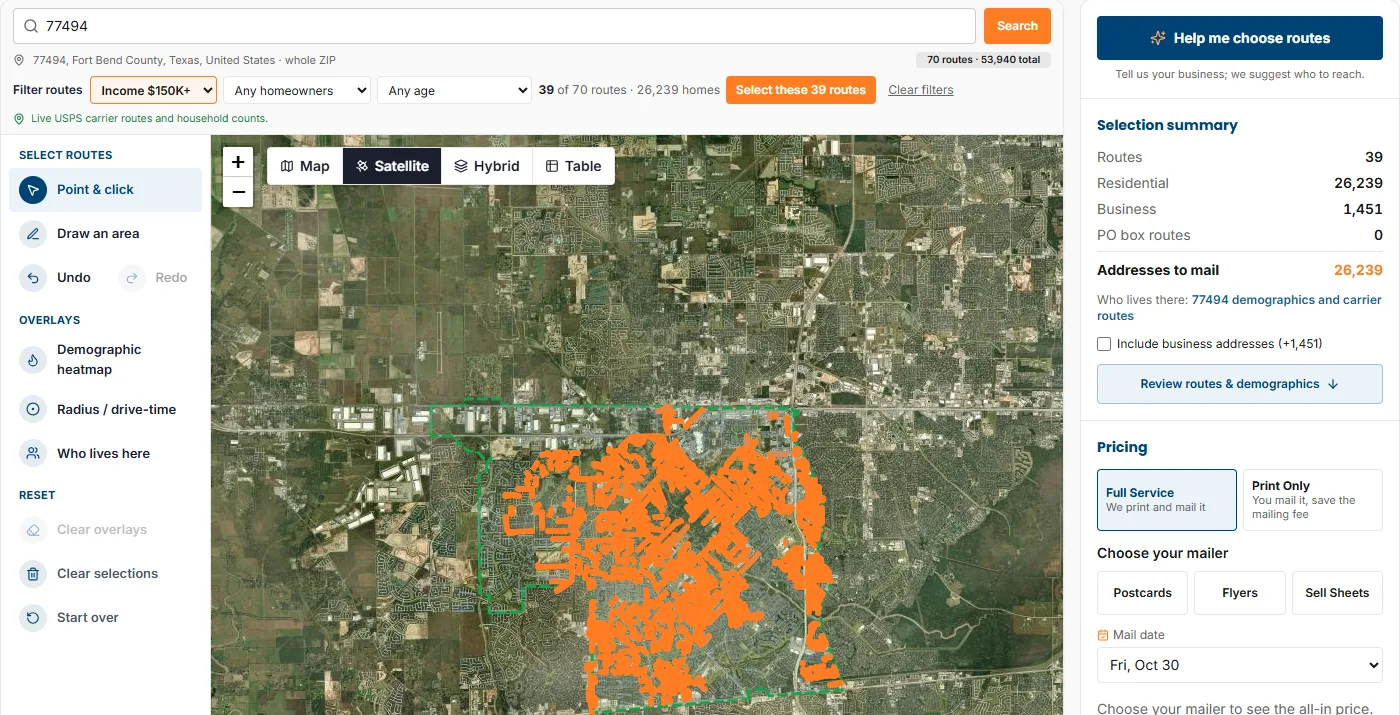
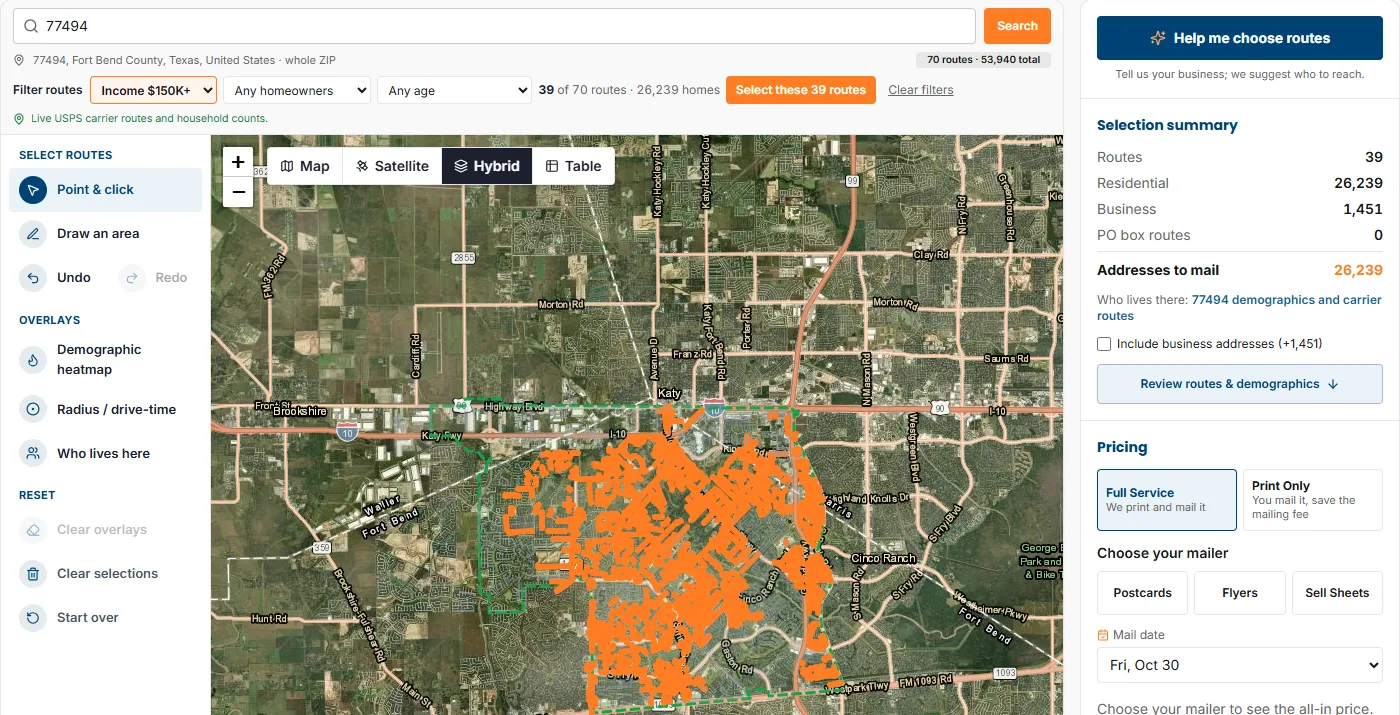
Map shows streets and place names. Satellite shows aerial imagery, which makes rooftops, open land and commercial or industrial areas easy to tell apart. Hybrid adds street labels over the imagery. Table switches to the list of routes. Use Satellite before you commit to a route that looks dense on paper but turns out to be warehouses or farmland.
06 · Help me choose routes
Let the tool suggest routes for your business
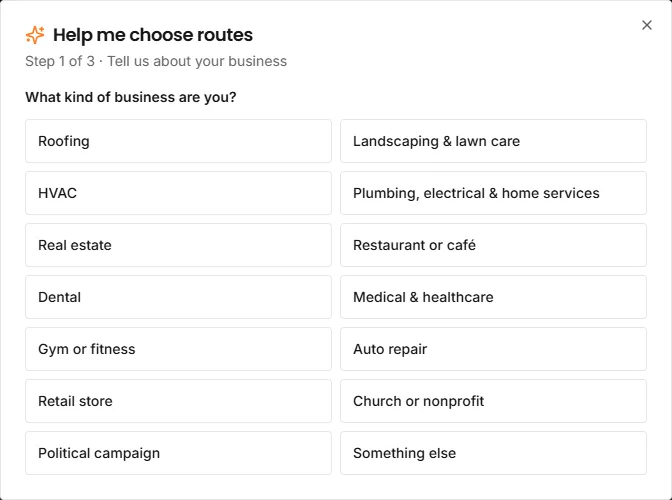
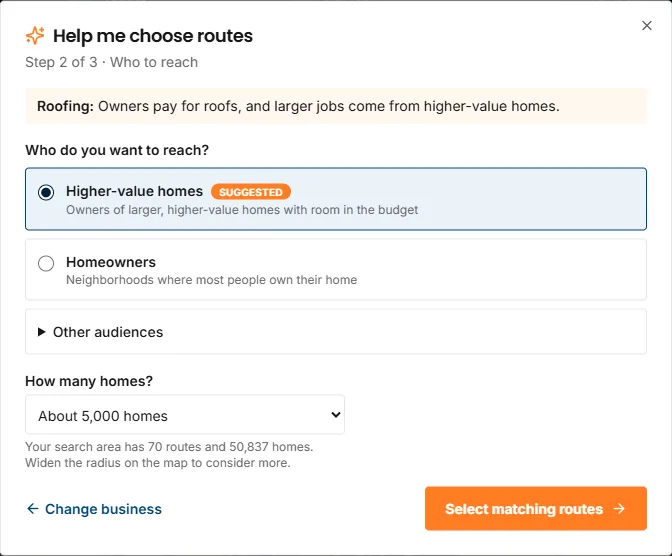
New to EDDM, or short on time? Choose Help me choose routes at the top of the right panel. It asks three things and selects routes for you. You can change anything afterward.
- 1
Tell it your business
Pick one of 14 types: Roofing, Landscaping and lawn care, HVAC, Plumbing, electrical and home services, Real estate, Restaurant or café, Dental, Medical and healthcare, Gym or fitness, Auto repair, Retail store, Church or nonprofit, Political campaign, Something else.
- 2
Choose who to reach and how many homes
It suggests an audience for your business and explains why, for example higher-value homes for roofing. You can pick another audience. Then choose about 1,000, 2,500, 5,000 or 10,000 homes, or all the good matches.
- 3
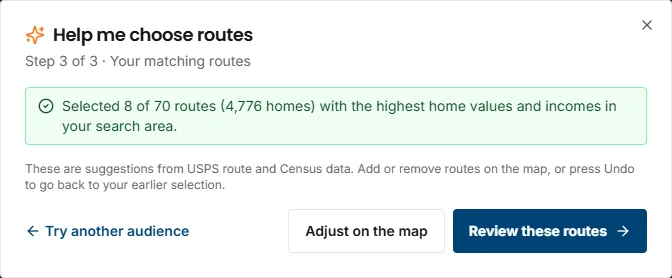
Review the matching routes
It selects the best-fit routes in your search area and tells you how many routes and homes it picked. Choose Adjust on the map to fine-tune, Try another audience to start over, or Review these routes to continue.
07 · Review and share
Check every route before you order
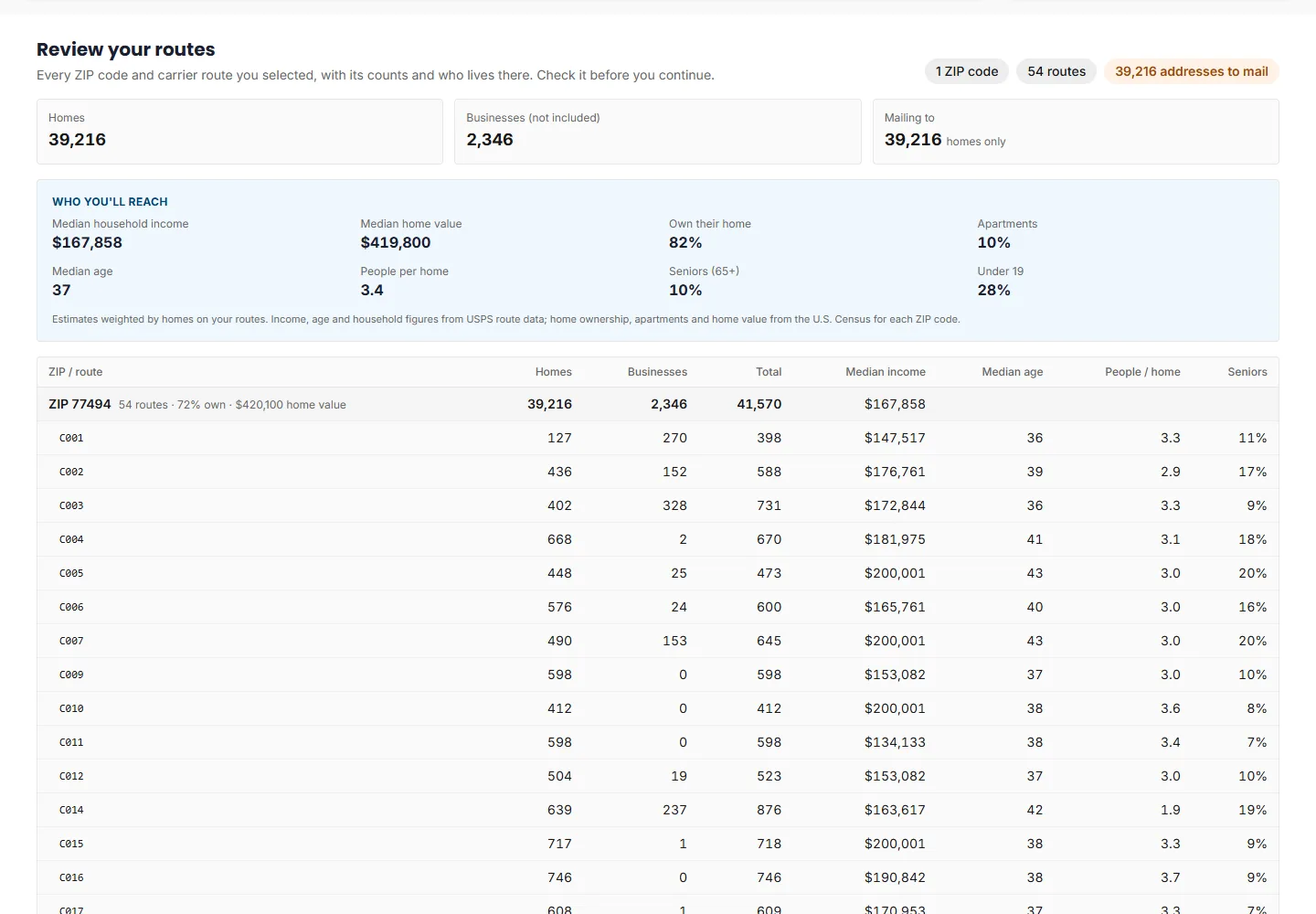
Choose Review routes & demographics under the selection summary. It scrolls to a review of exactly what you selected.
The review shows Homes, Businesses (not included) and what you are mailing to, then a Who you'll reach panel with median household income, median home value, share who own their home, apartments, median age, people per home, seniors and under 19. Below that, a table lists every ZIP code and route with its counts and demographics, and a totals row.
Print, email, save or share
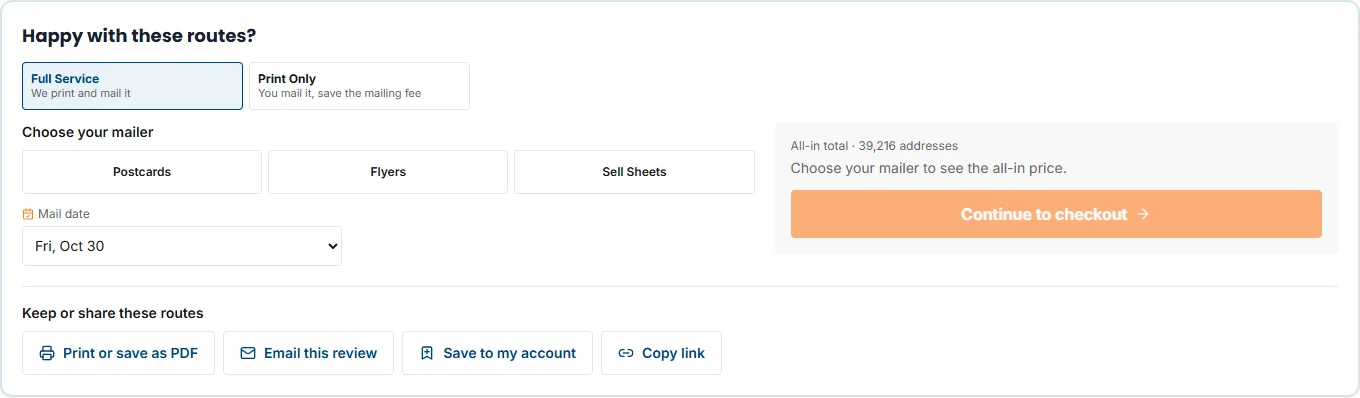
At the bottom of the review, under Keep or share these routes:
- Print or save as PDF for a copy to hand to a partner or keep on file.
- Email this review to any address, such as a business partner or a client who has to sign off.
- Save to my account to reopen the routes later from your campaigns.
- Copy link to get a link that reopens the same ZIP code and routes.
08 · Choose your mailer
Pick Full Service or Print Only, then a mailer
You choose the mailer after the routes, in the panel on the right and again at the bottom of the review.
- Full Service: we print, bundle by route, prepare the USPS paperwork and deliver the mailing to USPS. You approve the proof.
- Print Only: we print and ship to you, and you mail it as EDDM Retail at your Post Office. You skip the mailing service fee.
- Mailer: choose Postcards, Flyers or Sell Sheets, then a size and a paper.
- Mail date: pick from the dates the tool offers for your order.
The itemized price for your exact routes appears before you pay: printing, the mailing service and USPS postage. Prices depend on size, paper and quantity, so see live prices by size and quantity or the EDDM size guide to compare. Choose Continue to checkout when you are ready.
09 · Worked examples
How the filters behave for four kinds of business
These are real results from the tool for ZIP code 77494, which has 70 routes and 53,940 addresses. They show how the filters narrow a ZIP, not what any business should mail. Counts change when the USPS or Census data behind the tool updates.
| Business | Settings | Result in 77494 |
|---|---|---|
| Roofing company | Homeowners 80%+ and income $125K+ | 39 of 70 routes, 27,170 homes. Homeowners 90%+ on its own narrows to 24 routes and 16,635 homes. |
| Dental office | Income $150K+ | 39 of 70 routes, 26,239 homes. Adding a median age of 45 to 54 left zero routes. |
| Gym or fitness studio | Median age under 35, then income $75K+ added | 11 routes and 9,355 homes, then 6 routes and 4,888 homes. |
| Restaurant at a fixed location | Radius around a point near the middle of the ZIP | A 1-mile ring added 12 routes (7,232 homes). |
What the roofing selection looks like
Selecting those 39 routes and opening Who lives here gives one profile for the whole selection: median household income $167,719, median age 37, 3.4 people per home, 91% of households owning their home, 3% in apartments, median home value $441,547, 9% aged 65 and over and 29% under 19. That is the check to run before you pay for printing: does the profile look like your customer?
Four things the examples show
- Stacked filters can empty the list. Income $150K+ with a median age of 45 to 54 returned zero routes here. When that happens, loosen one filter and check the count again.
- Small selections work, up to a point. The gym example is 4,888 homes. USPS lists a 200-piece minimum for EDDM Retail orders, so a very narrow filter may need more routes to reach it.
- Each industry has its own playbook. The business names in the table link to the EDDM playbook for your industry, with sizing and offer ideas.
- Distance and demographics answer different questions. Filters find the people who look like your customers. Radius finds the people close enough to visit.
10 · The USPS EDDM tool
How this compares to the USPS EDDM tool
USPS runs the official EDDM Online Tool, where EDDM Retail postage is ordered. Our route tool covers the same planning step, then prices printing and mailing with it. You can plan with either, and many people check both.
| Feature | USPS EDDM tool, per its page | EDDM2GO route tool |
|---|---|---|
| Search | Address, city and state, or ZIP code | ZIP code or address |
| Radius around an address | 1 to 5 miles | 1 to 5 miles on an address search, plus a ring you place on the map |
| Filters | Age, household size and income | Income, homeowners and median age |
| Views | Map and table | Map, Satellite, Hybrid and table |
| Demographic heatmap | Not listed on its page | Six measures, with a range selector |
| Suggestions by business type | Not listed on its page | Help me choose routes |
| Saving and sharing | Save Order, with Register and Sign In links | Print, email, copy link, or save to an account |
| What the order covers | Postage entry for EDDM Retail, with a Company CRID and permit details on its order page | Printing, the mailing service and USPS postage together, as Full Service or Print Only |
The USPS column reflects what its tool page states today. Its features can change, so check eddm.usps.com for the current list. "Not listed" means we did not see it on that page, not that the feature is missing.
11 · Which tool when
Match the tool to your goal
| Your goal | Start with | Why |
|---|---|---|
| Cover the neighborhoods around your shop | Radius | One click adds every route inside a 0.5 to 5 mile ring. |
| Mail homeowners only, as a roofer or HVAC company would | Homeowners filter, then the heatmap on home ownership | It selects routes with the highest share of owners. |
| Reach higher-income households | Income filter or the income heatmap | You see the spread first, then select a range. |
| Cover one part of town | Draw an area | Your target is a shape, not a ZIP code. |
| Compare routes side by side | Table view | Counts, distance and estimated postage in one list. |
| You are new to EDDM | Help me choose routes | It suggests an audience and selects routes you can adjust. |
| Someone else has to approve the plan | Review, then Email or Copy link | They see the same counts and demographics you do. |
12 · Questions
Route tool FAQ
Quick answers about how the tool works and where its numbers come from.
Is the EDDM route tool free, and do I need an account?
It is free, and you do not need an account. You can search any ZIP code, select routes, review the demographics, and print, email or copy a link to the result. You only pay when you place an order. An account is only needed to save routes alongside your other campaigns.
How is this different from the USPS EDDM tool?
Both let you search a ZIP code or address, see carrier routes and filter by who lives there. USPS runs the tool where EDDM Retail postage is ordered. Ours adds a demographic heatmap and route suggestions by business type, and it prices printing and the mailing service with the postage. The comparison table above lists each feature.
Where do the counts and demographics come from?
Address counts come from USPS carrier route data. Income, age and household figures come from USPS route data where it has them, and home ownership, apartments and home value come from U.S. Census estimates. Treat the demographic figures as estimates, not a headcount.
Why did my filters return no routes?
Every filter you add narrows the list, and the combination may match nothing in that ZIP code. In the examples above, income of $150K+ with a median age of 45 to 54 returned zero routes in 77494. Loosen one filter, or search by address to take in neighboring ZIP codes.
How do I choose routes for my kind of business?
Start with who your best customers are. Homeowners and home value suit roofing and home services. Income suits dental and medical offices. Age suits fitness. Distance suits a shop people visit. The worked examples above show each approach, or use Help me choose routes and it suggests one.
Does the tool include businesses?
Business addresses are counted separately and are not included by default. Tick Include business addresses in the selection summary to add them to your piece count.
What does the estimated postage in the table mean?
It is an estimate for mailing that one route. The itemized price for your exact routes, with printing, the mailing service and USPS postage, appears before you pay.
Can I come back to my routes later or share them?
Yes. Copy link gives a link that reopens the same ZIP and routes, Email this review sends the review to any address, and Save to my account keeps the routes with your other campaigns.
Where to go next
Keep going
Find your routes now
Enter a ZIP code and see every carrier route, its address counts and who lives there. No account needed.
Questions? (346) 306-EDDM (3336) ·cs@eddm2go.com